

Upload your own shipping labels
If you book J&T Express yourself for your Shopify orders, upload the AWB PDF to theopsroom. theopsroom reads each page, puts it on its order, and the warehouse prints it when packing that order.
Before you start
Section titled “Before you start”- Only J&T Express AWBs are read (tracking numbers “JT” and 14 digits).
- Only Shopify orders can take your label, while they’re New or In Process, not packed, and without a courier booked by theopsroom.
- The PDF can have up to 200 pages and be up to 10 MB, without a password.
- Open Orders and click Seller labels. On a phone, tap Filters and then Seller labels at the bottom of the sheet.
- Click Upload AWB PDF and choose the file.
- Check before saving lists each page: its tracking number, the receiver, and the result:
- Matched: one open order has the same phone and postcode.
- Pick the order: several orders could match. Choose one in the Order list.
- No order yet: kept until the order arrives, then matched by itself.
- Order already has a label: choose Keep the order’s label or Replace the label on ….
- Couldn’t read this page or Already uploaded: skipped.
- Click Save labels. “Nothing is saved until you press Save labels.” You see “… label(s) saved · … on an order”.
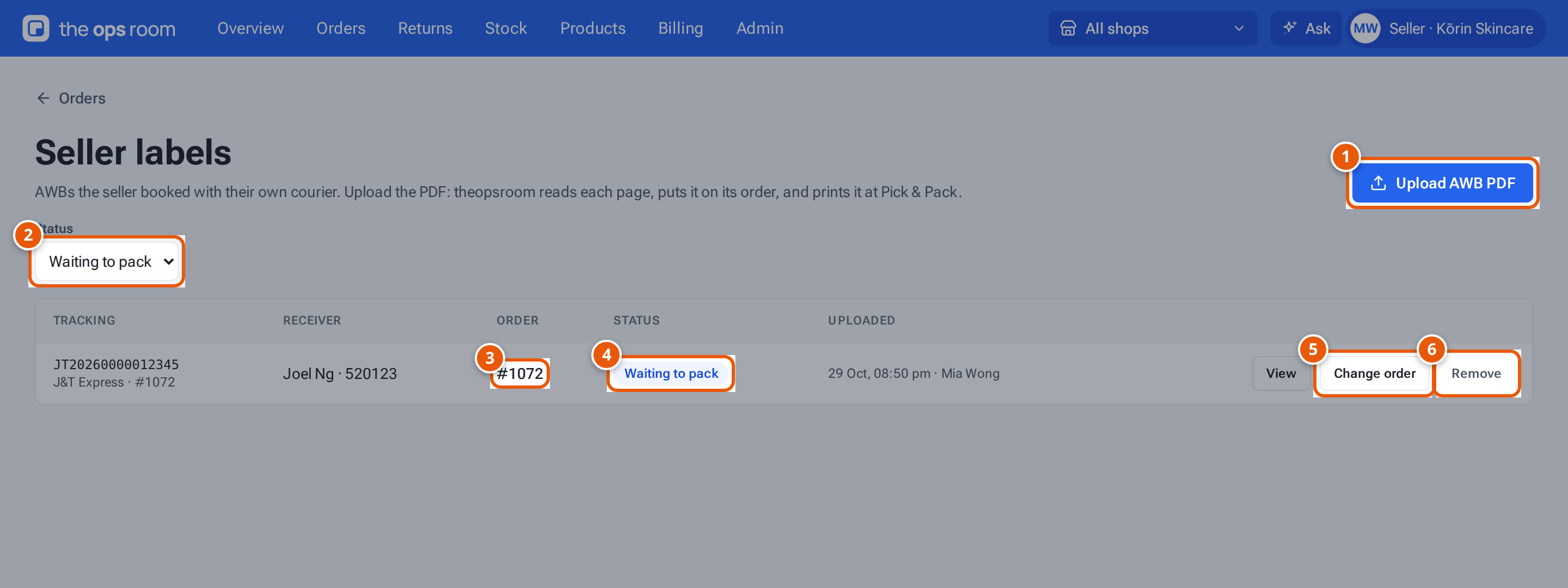
- 1. Upload the J&T AWB PDF from the courier’s site.
- 2. Show labels waiting to pack, packed, removed or not used.
- 3. The order the label is on.
- 4. It waits to be printed at packing.
- 5. Put it on another order.
- 6. Stop theopsroom using it (the courier booking stays).
On Orders, the order then shows “Seller’s label · J&T Express” with the tracking number.
What each button and field means
Section titled “What each button and field means”| Item | What it does |
|---|---|
| Status | Waiting to pack, Packed, Removed, Not used, or Any status. “Not used (packed with …)” means the order was shipped another way. |
| View | Open the label’s page. |
| Match to an order / Change order | Put a waiting label on an order. Likely orders say “(likely)”. |
| Remove | theopsroom won’t use it. This doesn’t cancel the booking with the courier. |
If something goes wrong
Section titled “If something goes wrong”| Message | Why | What to do |
|---|---|---|
| “This file isn’t a PDF” | — | Download the AWB as a PDF. |
| “This PDF is password-protected — upload one without a password” | — | Save it without a password. |
| “This PDF can’t be read — save it again from the courier’s site and upload that” | — | Download it again from J&T. |
| “A file can be at most 10 MB” / “A file can have at most 200 pages” | — | Split the file. |
| “This preview has expired — upload the file again” | You waited too long before saving. | Upload it again. |
| “That order already has a seller label — remove it first” | — | Remove the other label first. |
| “This label is on a packed parcel” | It’s already been used. | Nothing to do. |
Related pages
Section titled “Related pages”- Follow your orders
- Your shipping settings (your own courier accounts)