

Pictures
Pictures is the library of everything your website shows: photos, logos and background videos. Upload a picture here once and use it in any section, post or setting. This page is for website editors (admins with Website editor switched on). The tab opens even before your website is started.
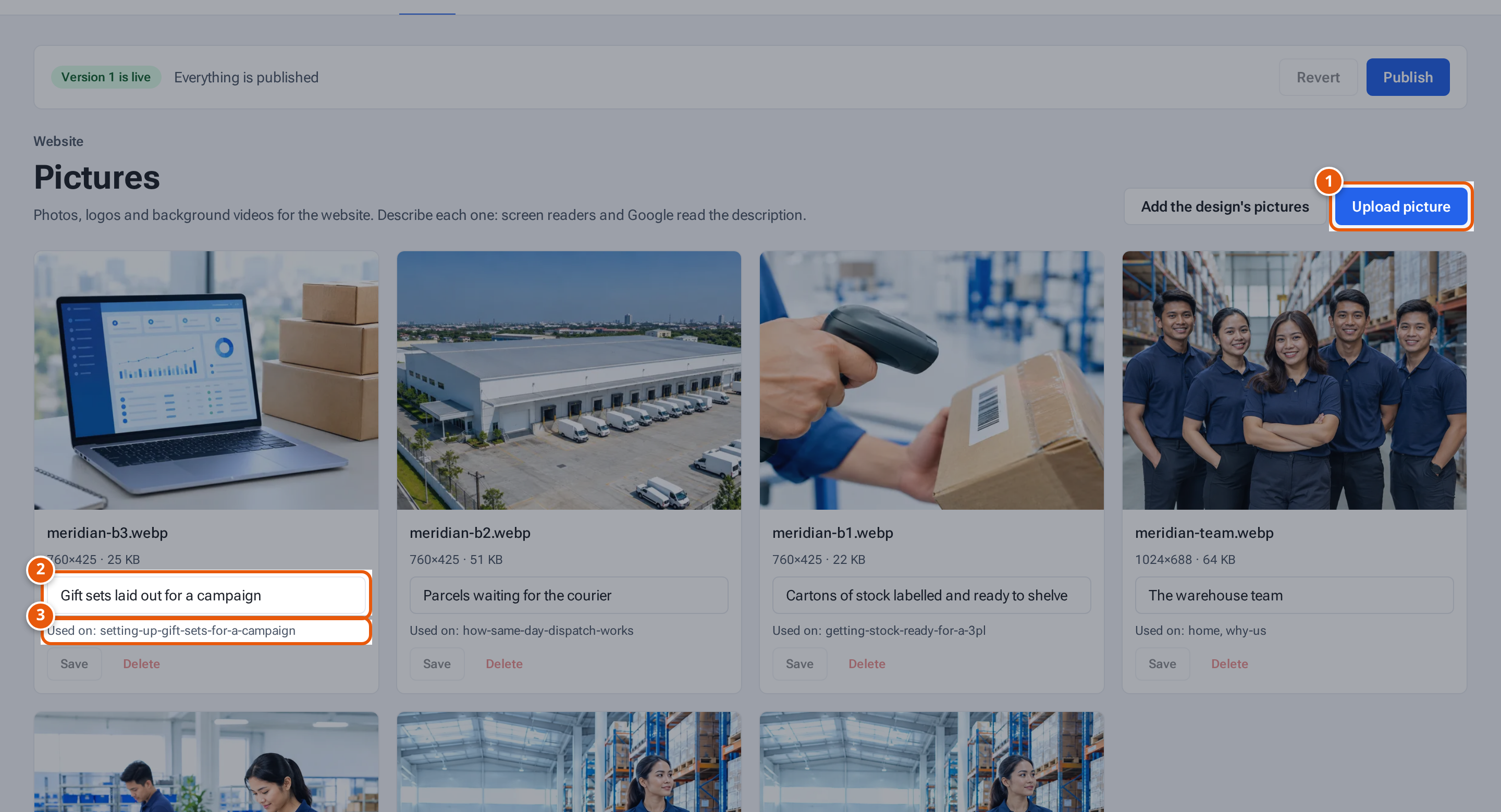
- 1. Upload a picture.
- 2. Describe each picture: screen readers and Google read it.
- 3. Where the picture is used.
Upload a picture or video
Section titled “Upload a picture or video”- Open Website and choose the Pictures tab.
- Press Upload picture. The window is called Upload a picture or video.
- Choose the file. A picture can be JPEG, PNG or WebP, up to 10 MB. A video must be MP4, up to 15 MB.
- Type a Description: what the picture shows, for example “Our team packing orders”. Screen readers and Google read it. It is required, up to 200 characters.
- Press Upload.
You can also upload from any picture field inside a section, post or setting.
What each card shows
Section titled “What each card shows”Each picture has a card with its file name, its size (width × height and file size, or Video), a description box and a line saying where it is used: “Used on: …” or “Not used”.
| Button | What it does |
|---|---|
| Save | Saves a changed description. It is switched off until you change the words. |
| Delete | Deletes the picture after you confirm (“Delete file? This can’t be undone.”). It is switched off while the picture is used: remove it from those pages first. |
Add the design’s pictures
Section titled “Add the design’s pictures”Only if your site uses a private design made for your company, the Pictures tab also has Add the design’s pictures. It asks first, then puts the design’s logo, photos and logos into every empty picture spot. Spots that already have a picture are left alone. When it finishes it says how many were added and reminds you to Publish. Other sites don’t need it: a template brings its own pictures.
The picture limit
Section titled “The picture limit”Each website can hold a fixed number of pictures (300 unless the platform admin set another number). When it is full, uploads are refused with “This website already has … pictures. Delete some you no longer use, then try again.” Delete pictures marked Not used to make room. Ask the platform admin if you need a higher limit.
If something goes wrong
Section titled “If something goes wrong”| What you see | What to do |
|---|---|
| “Choose a picture or video.” | Choose a file first. |
| “Use a JPEG, PNG or WebP picture.” | Convert the picture to one of those types. |
| “Pictures can be up to 10 MB.” / “Videos can be up to 15 MB.” | Make the file smaller. |
| “Use an MP4 video.” | Convert the video to MP4. |
| “Describe the picture (for screen readers and Google).” | Type a description. |